


You don’t have to be a professional web designer or developer to design your own website. With the right website builder and a good plan, you can create the pages, layout, navigation, and overall look of your website yourself.
The key is to approach website design as a process. Before you start adding colors and images, figure out what pages you need and how you want visitors to move through your website. Then you can build the design, add your content, make it responsive, and test everything before launching.
Here is a step-by-step guide to designing your own website.
1. Decide What Your Website Needs to Include
Before you start designing individual pages, make a list of the information and features your website needs.
Think about what visitors should be able to find or do on your website. Depending on the type of website you’re creating, you may need pages such as:
- Home: An introduction to your website and what visitors can find there.
- About: Information about you, your company, organization, or project.
- Services or Products: Details about what you offer.
- Portfolio or Gallery: Examples of your work, projects, products, or images.
- FAQ: Answers to common questions.
- Blog: Articles, news, updates, or other regularly published content.
- Contact: A way for visitors to get in touch with you.
You may not need all of these pages, and you may need others depending on your website.
The important thing is to determine what information belongs on your website before you start designing the individual pages.
2. Plan Your Website’s Structure and Navigation
Once you know what pages you need, organize them into a logical structure.
A well-organized website makes it easier for visitors to find what they are looking for. Your main navigation should make the most important pages easy to access without overwhelming visitors with too many choices.
Create a Sitemap
A simple sitemap can help you visualize your website’s structure.
For example:
- Home
- About
- Services
- Service 1
- Service 2
- Service 3
- Portfolio
- Blog
- Contact
You don’t need to manually code an XML sitemap. A website builder such as UltimateWB can automatically generate one for search engines with its built-in Sitemap Generator.
The sitemap you use when planning your website’s pages is also useful as a way to think through your site’s overall organization before you start building it.
Plan Your Navigation
Decide which pages should appear in your main navigation and which pages can be reached through links within your content.
Keep the navigation consistent throughout your website so visitors don’t have to figure out how to get around every time they visit a new page.
Read: How to Optimize Website Structure and Navigation
3. Sketch Out Your Page Layouts
Before you start building, think about where the different elements of each page should go.
You don’t need to create a professional graphic design mockup. Even a simple sketch can help.
Consider the basic layout of your pages:
- Header: Logo, website name, and main navigation.
- Main content area: The primary information on the page.
- Headings and subheadings: Help organize the content and make the page easier to scan.
- Images and other visuals: Place them where they support the content rather than simply filling empty space.
- Calls to action: Make important next steps easy to find.
- Footer: Useful links, contact information, copyright information, and other secondary navigation.
Not every page has to use exactly the same layout. However, keeping common design elements consistent throughout your website gives it a more polished and professional appearance.
For more ideas on planning your website’s visual structure before you start building, see How to Design a Website From Scratch: The Ultimate Guide for Builders.
4. Design Your Website’s Look and Feel
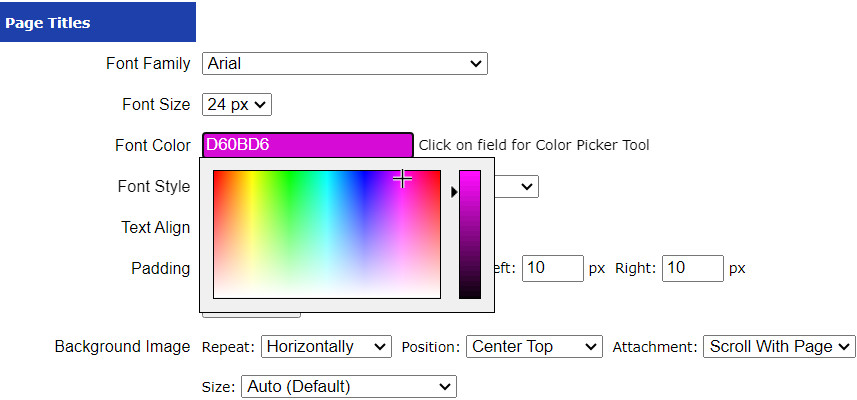
Now you can start thinking about the visual design.
Your website’s design should be consistent from page to page. Visitors should feel like they are still on the same website when they move from one section to another.
UltimateWB’s built-in Styles Manager makes it easy to design your website’s look and feel and keep your styling consistent: Styles Manager: Advanced Styles with no coding required
Choose a Color Palette
Select a small group of colors that work well together.
You might have:
- A primary brand color
- One or two secondary colors
- A background color
- A text color
- A color for buttons or other important elements
You don’t need dozens of colors to make a website interesting. In many cases, a simple, consistent color scheme looks better.
Help Topics on Website Colors:
- What colors evoke what emotions?
- Can specific colors or color schemes make a website appear outdated or less modern?
- How can I choose the right colors for my brand if I lack experience in design?
- Tutorial: How to Instantly Make Your Designs Look Cleaner
Choose Readable Fonts
Typography is an important part of website design.
Choose fonts that are easy to read, particularly for longer blocks of text. You can use different font sizes and weights to establish a visual hierarchy between headings, subheadings, body text, and other elements.
Try to keep your font choices consistent rather than using a different font for every section of your website.
Help Topics on Fonts:
- Choosing Website Fonts Made Easy: A Step-by-Step Guide
- How can I use a Custom Font on my website?
- How Many Fonts Should Your Website Use – 1, 2, or More?
- Should You Host Google Fonts Directly on Your Website?
- Top 10 Website Fonts to Avoid Due to Compatibility Issues
- How can you choose web fonts that are both readable and beautiful?
Create a Consistent Visual Style
Think about how your:
- Buttons
- Headings
- Images
- Links
- Navigation
- Backgrounds
- Borders
- Spacing
will look throughout the website.
Consistency makes a website easier to use and helps establish a recognizable visual identity.
Related Articles on Design Trends:
- From “Wow” to “Wait, What?”: Web Design Trends Already Fading (But Not Gone)
- Modernize Your Website: Avoiding Outdated Design Trends
- Embracing Whitespace: The Secret Ingredient to Stunning Web Design
- Top Web Design Trends to Enhance User Experience and Website Effectiveness
- Design or Distraction? Avoiding the Most Overhyped Trends of 2026
- What Makes a Website Design Truly Stand Out in 2026?
Match Your Website Design to Your Branding
Your website should look like it belongs to your brand – or if it’s a personal website, to you and your style.
If you already have established branding, use it as a starting point for your website design. Your logo, colors, fonts, imagery, and overall visual style should work together so that visitors recognize your brand consistently across your website and other materials.
For example, if your business already uses specific brand colors, incorporate those colors into your website’s navigation, buttons, headings, backgrounds, or other design elements. If you have established brand fonts, consider how they can be used effectively on the website while still keeping the text readable.
If you don’t have established branding yet, your website can be a good place to develop a consistent visual identity. Choose colors, fonts, imagery, and design elements that fit the personality you want your brand to communicate.
Think about:
- Logo: Make sure your logo works well within your website header and doesn’t look out of place with the rest of the design.
- Brand colors: Use your primary and secondary colors consistently throughout the website.
- Typography: Choose fonts that complement your brand while remaining easy to read.
- Images and graphics: Use a consistent style for photography, illustrations, icons, and other visuals.
- Buttons and other design elements: Give recurring elements a consistent appearance so the website feels cohesive.
The goal isn’t to make every part of your website look identical. It’s to create a consistent visual language that connects the different pages and makes the website feel like one complete brand.
Branding Help Topics:
- Building a Strong Brand: The Key Elements of Successful Branding
- Why a Customizable Website Builder is the Key to Unique Branding
- UltimateWB: More Than a Website Builder – Your All-in-One Branding Software
- What are some successful examples of rebranding in the startup world?
5. Create and Organize Your Page Content
Once you have an idea of your page layouts, create the actual content that will go into them.
Good website design isn’t just about colors and graphics. The way information is written and organized has a major effect on how easy a page is to use.
Make Your Content Easy to Scan
Avoid putting everything into one giant block of text.
Instead:
- Use descriptive headings.
- Keep paragraphs reasonably short.
- Use lists where appropriate.
- Break longer pages into logical sections.
- Use images and other visuals when they add value.
- Put important information where visitors can easily find it.
Your page design should support your content, not compete with it.
For more on creating useful website content, see What Makes Your Website Content “High-Quality”? 6 Essential Search Standards.
Give Each Page a Clear Purpose
Each page should have a reason for existing.
Before publishing a page, ask yourself:
What should a visitor understand, find, or do after viewing this page?
This simple question can help prevent pages from becoming cluttered with information that doesn’t really belong there.
6. Design Your Website With SEO in Mind
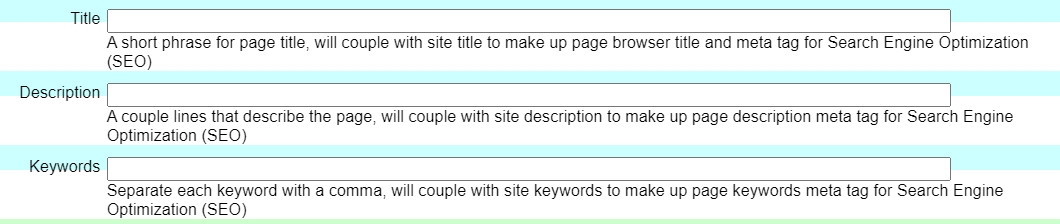
SEO isn’t something you should think about only after your website has been built. Some important SEO considerations can be incorporated into your website’s design and page structure from the beginning.
You don’t need to turn every design decision into an SEO exercise. The goal is simply to make your website easy for both visitors and search engines to understand.
Give Each Page a Descriptive Title
Every important page on your website should have a descriptive, relevant page title that accurately tells people and search engines what the page is about.
For example, instead of using a generic title such as:
Home
you could use a more descriptive title that reflects the subject of the page.
Your page title is also typically what search engines use as the clickable title for your page in search results, although search engines may sometimes generate a different title.
Use a Clear Heading Structure
Organize your page content with meaningful headings and subheadings.
Your main page heading should clearly communicate what the page is about, while additional headings can break the content into logical sections.
Don’t choose headings simply because you like how a particular font size looks. Use the heading structure to organize the information on the page, and use your website’s styling to control how those headings look.
Help Topics on Headings:
- Why You Should Remove Redundant Header Tags from Your Web Pages
- Should you use H1 Tags for better SEO, search engine ranking, and more organic traffic?
- Why an H1 Shouldn’t Come After an H3 – And Why It Matters for SEO and Accessibility
Write Descriptive URLs
Where possible, use URLs that give visitors an idea of what a page is about.
For example, a URL such as:
yourwebsite.com/website-design-tips
is more informative than:
yourwebsite.com/page123
Keep URLs readable and relevant to the page rather than trying to cram every possible keyword into them.
Add Useful Meta Descriptions
A meta description can provide a concise summary of what a page is about.
While meta descriptions aren’t a direct ranking factor, a useful description can help people understand what they will find when they see your page in search results.
UltimateWB’s built-in SEO tool makes it easy to customize your page titles and meta description tags.
Help Topics on Meta Descriptions:
- Boost Website Traffic! How to Write Title Tags & Meta Descriptions
- Pro Tip: Why Your Blog Title Shouldn’t Be Your Meta Description
- Is 160 characters recommended for webpage meta descriptions?
- Meta Descriptions Too Short? What Bing’s Warning Really Means and How to Fix It
- Add SEO Meta Descriptions to Your WordPress Blog with UltimateWB – No Plugins Needed!
- How to get Google to update your meta description for your website?
How Important are Meta Descriptions and Meta Tags:
- The SEO Debate: Should You Write or Skip Meta Descriptions?
- Do Meta Descriptions Really Matter, or Can You Leave Them Blank?
- Should You Fix Meta Tags on Every Page? Here’s When It Matters (and When It Doesn’t)
Use Descriptive Image Alt Text
Images can be an important part of website design, but not everyone can see or interpret images in the same way. Descriptive alt text helps make your website more accessible to people who use screen readers and other assistive technologies, while also providing search engines with additional context about your images.
Use descriptive alt text when appropriate to explain the purpose or meaningful content of an image. Don’t stuff keywords into alt text that don’t naturally describe the image.
Not every image needs a detailed description. For example, decorative images that don’t add meaningful information may not need descriptive alt text.
Also make sure your images are appropriately sized and optimized so that they don’t unnecessarily slow down your pages. Use the UltimateWB built-in WebP image conversion tool to automatically optimize your images.
A fast website provides a better experience for users and can help reduce the chance that visitors will leave because a page takes too long to load. Page speed can also be a factor in search performance. Keeping your pages efficient can help search engine bots crawl your website and discover and index your content, which can ultimately help users find your website in search results.
Read: What is the best CMS for fast loading websites?
Make Your Website Easy to Navigate
Good navigation is important for both visitors and search engines.
Make sure your important pages can be reached through logical navigation and internal links. Organize related pages into sensible sections and use descriptive link text when appropriate.
A clear website structure helps visitors find what they need and helps search engines discover and understand the relationships between your pages.
Create an XML Sitemap
An XML sitemap helps search engines discover the URLs you want them to know about.
You don’t have to manually create one. UltimateWB includes a built-in Sitemap Generator that can automatically generate your website’s sitemap.
Read: How To Easily & Automatically Create A Sitemap For Your Website
Don’t Design for Search Engines at the Expense of Visitors
SEO should support good website design, not take it over.
Don’t add awkward keywords, excessive links, unnecessary text, or other elements simply because you think they might help rankings. Your website should first be useful, understandable, and easy to navigate for real people.
When you combine a clear website structure, useful content, descriptive page elements, good navigation, and a responsive design, you’re creating a better foundation for both visitors and search engines.
Related SEO Help:
- Beginner’s SEO Guide: Step-by-Step Process to Promote Your Business Online
- How to Optimize Your Website for Both Search Engines and Users
- How to Do Keyword Research: A Step-by-Step Guide to Better SEO
- SEO Tips: How to effectively use keywords on your webpage?
- Signs Your Website Content Is Too Focused on Keyword Targeting
- What’s the Best Website Builder for SEO?
- How Long Does It Take for a New Website to Start Ranking?
7. Build Your Website
Now it’s time to turn your plans into an actual website.
You can code your website from scratch, hire a web designer, or use a website builder that lets you design and build the site yourself.
A website builder can make the process considerably easier because you don’t have to manually code every page and feature.
UltimateWB is designed to be beginner friendly while still giving more experienced users flexibility and control.
Create Your Pages
Start creating the pages from your planned site structure.
Add your:
- Headings
- Text
- Images
- Videos
- Buttons
- Forms
- Links
- Other website features
As you build, refer back to your planned layouts so that your pages don’t become cluttered or inconsistent.
Related: How to Update the Same Website Content on Multiple Pages at Once
Configure Your Navigation
Make sure visitors can easily move between the important sections of your website.
UltimateWB lets you organize your navigation without having to manually code it, and you can customize its appearance with the built-in Styles Manager.
Related: Webflow, Shopify, WordPress, Wix, Squarespace, Framer Miss This Simple Navigation Feature
Add Website Features
Depending on what your website needs, you may also want to add forms, photo galleries, slideshows, e-commerce functionality, a blog, a forum, a mailing list, or other interactive features.
Using built-in website features can make this easier than having to find and install separate plugins or add-ons for everything.
This is one of the aspects of building your website that is heavily dependent on the website builder you choose to use. UltimateWB has the most extensive list of built-in features of any website builder on the market, reducing any maintenance overhead and security risks introduced by using third-party plugins.
Related:
- The Powerful Website Builder for Beginners and Coders
- The Most Powerful Website Builder Made Simple: UltimateWB
- How to Evaluate All-in-One Website Builders? Features, Performance, Scalability, Maintenance
- Why Avoiding Third-Party Plugins Makes Your Website Faster, Safer, and Easier to Manage
- Why Relying on WordPress Plugins Can Backfire (And How to Avoid It)
8. Make Your Website Responsive
Your website needs to work on more than just the computer you used to design it. Actually, if you made your website with the UltimateWB website builder, you could have used your smartphone or tablet to build it as well :-)
Similarly, visitors may view your website on:
- Desktop computers
- Laptops
- Tablets
- Smartphones
- Different screen sizes and orientations
A responsive website adjusts its layout to the visitor’s screen size rather than requiring a separate website for every device.
UltimateWB’s built-in Responsive App makes it easier to create responsive pages that work across desktop, tablet, and smartphone screens.
Don’t just assume that a page that looks good on your desktop will automatically look good on a phone. Preview your pages at different screen sizes and adjust the layout where necessary. You can check out how your pages look on various sizes easily using the free UltimateWB Responsive Check Tool.
9. Review Your Website’s Design and Usability
Before launching your website, look at it as if you were a first-time visitor.
Ask yourself:
- Can I immediately understand what this website is about?
- Is the navigation easy to find?
- Can I quickly locate the information I’m looking for?
- Are the headings easy to scan?
- Are the fonts easy to read?
- Do the colors and design elements work well together?
- Are the pages too crowded?
- Are important buttons and links easy to find?
- Does the website look good on both desktop and mobile?
It’s often helpful to have someone else look at the website too. You may be used to your own design and overlook something that is confusing to a new visitor.
You can also take a break from your website and then come back to it to review – you might catch things regarding the design or formatting/structure that you would not have caught otherwise.
10. Test Everything Before You Launch
A website can look great and still have problems that aren’t obvious until someone actually uses it.
Before making your website public, test:
- Navigation links
- Internal links
- External links
- Contact forms
- Buttons
- Search functionality
- Images
- Videos
- Shopping cart and checkout functionality, if applicable
- Mobile layouts
- Different browsers and screen sizes
Proofread your content carefully as well. Check spelling, grammar, formatting, page titles, and other details.
You can also keep your website accessible only to you and selected individuals while you’re working on it. UltimateWB’s built-in Site Maintenance tool can help you keep a website from being publicly accessible while you’re still building and testing it.
11. Launch Your Website and Keep Improving It
Once you’ve finished designing, building, and testing your website, it’s time to launch it.
But launching isn’t really the end of website design.
As people use your website, you’ll learn what works well and what could be improved. You may discover that a page needs a better layout, a navigation item needs to be moved, or certain information should be easier to find.
Monitor your website and make improvements over time.
You can:
- Add new pages and content.
- Update outdated information.
- Improve page layouts.
- Add new features.
- Replace outdated images.
- Simplify confusing navigation.
- Improve pages based on visitor behavior and feedback.
A good website doesn’t have to stay exactly the same forever. One of the advantages of designing and managing your own website is that you can continue changing it as your needs evolve.
Related: What Your Website Visitors Are Secretly Telling You (Through Their Clicks & Bounces)
Designing Your Own Website Doesn’t Have to Be Complicated
Designing your own website becomes much easier when you break the process into manageable steps.
First decide what your website needs to include. Then plan the pages and navigation, sketch out your layouts, choose your visual style, create and organize your content, build the pages, make the design responsive, and thoroughly test everything before launching.
You don’t have to be a professional web designer to do it yourself. A flexible website builder can handle much of the underlying coding while still giving you control over how your website looks and works.
Go through the checklist: 10 Essential Website Design Features Your Website Needs
Concerned about the website development time? Read: How Long Does It Really Take to Build a Website? (Timeline Breakdown)
Ready to design & build your own website? Learn more about UltimateWB! We also offer web design packages if you would like your website designed and built for you.
Got a techy/website question? Whether it’s about UltimateWB or another website builder, web hosting, or other aspects of websites, just send in your question in the “Ask David!” form. We will email you when the answer is posted on the UltimateWB “Ask David!” section.