


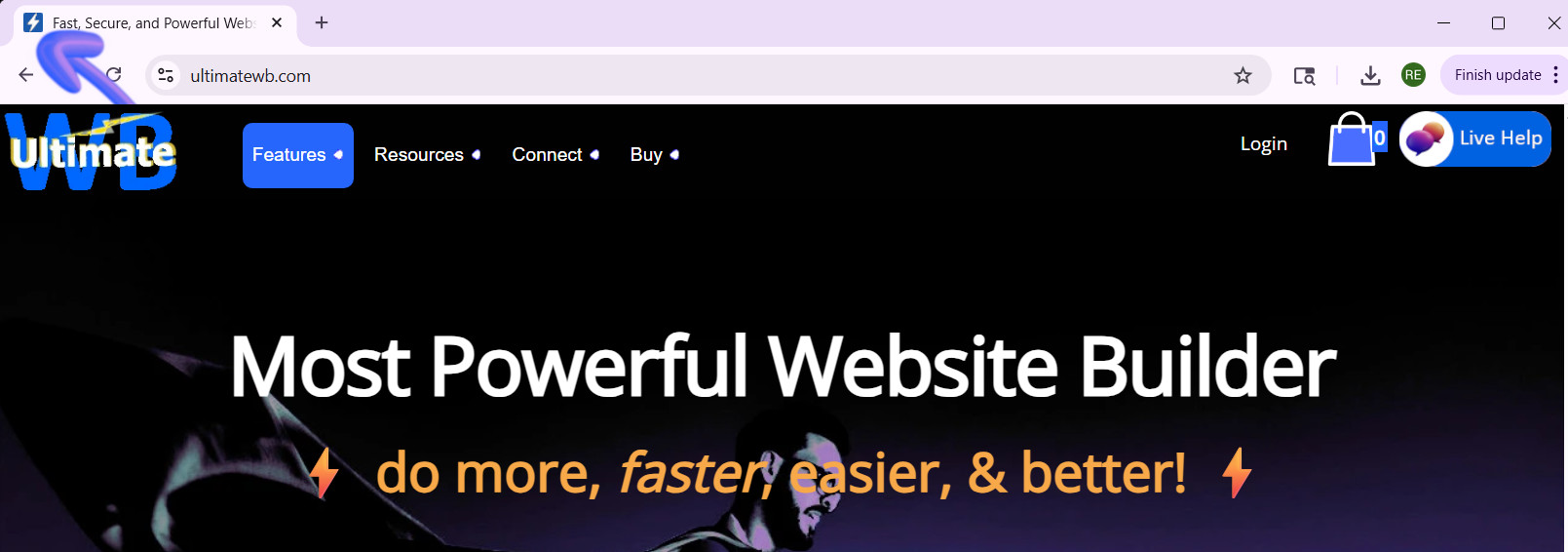
A favicon might be small, but it plays a big role in your website’s branding and user experience. That tiny icon in the browser tab, bookmarks, and shortcuts helps visitors recognize your site instantly and gives your website a professional touch. So, how do you create a high-quality favicon that stands out? And how do you add it to your website the easy way? Let’s break it down…
1. Keep It Simple and Recognizable
Favicons are tiny – usually just 16×16 pixels – so intricate designs often get lost. Focus on a single symbol, letter, or a simplified version of your logo. Your goal is instant recognition, not a detailed masterpiece.
2. Use the Correct Size and Format
The standard favicon size is 16×16 pixels, which works well for browser tabs. The most widely supported format is .ico, though modern browsers also support PNG. Make sure your design remains clear at that small scale – test it by zooming out to see if it’s still recognizable.
3. Choose High-Contrast Colors
Because favicons are so small, colors that contrast well help your icon stand out. If your logo uses multiple shades, consider simplifying it to two or three colors for better visibility.
4. Creating your Favicon Image
Create the image file in Photoshop, or a similar graphics software, and save it as a .ico image file. If your design includes layers, it’s best to first save it as a PNG, then open that file and save it as a .ico image. If you don’t have Photoshop, you can download the free open source graphics software, Gimp.
5. Uploading Your Favicon on UltimateWB
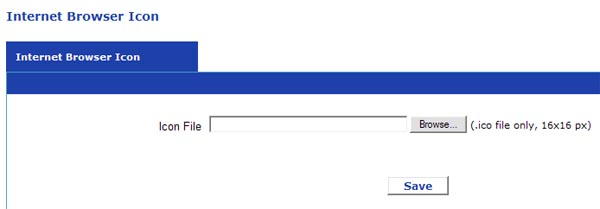
Here’s the best part for UltimateWB users: you don’t need to touch any code to update your site’s favicon. On all versions of UltimateWB, you can simply:
- Go to your UltimateWB admin panel, Configure Site > Internet Browser Icon.
- Upload your favicon file in the easy form – make sure your favicon sizing/formatting is correct (16×16, .ico format).
That’s it! UltimateWB updates your website favicon automatically, so your visitors see your new icon immediately. No coding, no hassle – just a few clicks and your site looks professional.
Conclusion
Creating a high-quality favicon is all about simplicity, clarity, and proper formatting. And with UltimateWB, implementing your favicon couldn’t be easier. A polished favicon strengthens your brand, improves recognition, and adds a professional touch – all with no coding required with UltimateWB.
Ready to design & build your own website with your own custom favicon? Learn more about UltimateWB! We also offer web design packages if you would like your website designed and built for you.
Got a techy/website question? Whether it’s about UltimateWB or another website builder, web hosting, or other aspects of websites, just send in your question in the “Ask David!” form. We will email you when the answer is posted on the UltimateWB “Ask David!” section.