


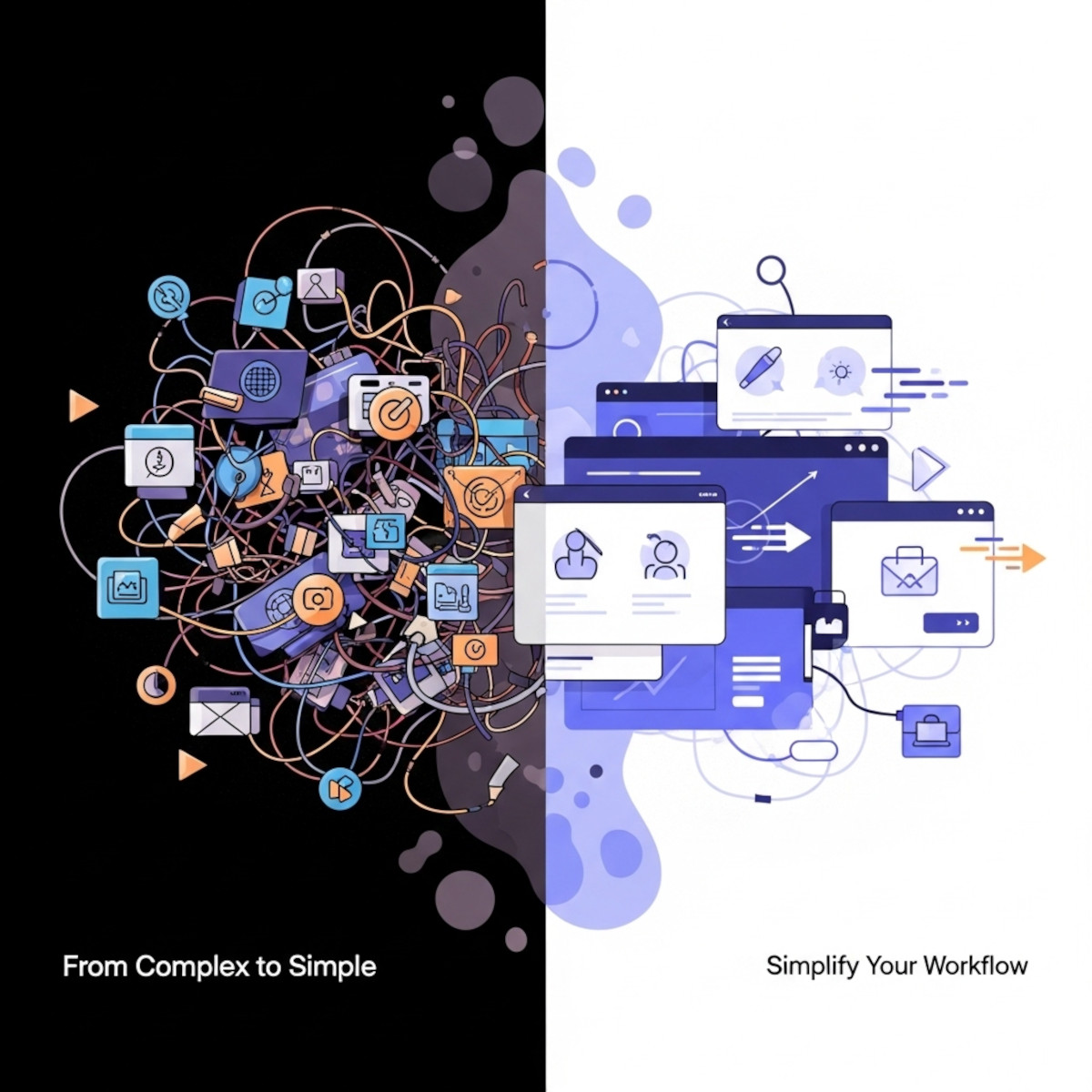
If managing WordPress feels overwhelming – with constant updates, plugin conflicts, security concerns, and a steep learning curve – it may be time for a change. WordPress powers millions of websites, but it’s not always the easiest or fastest option.
Migrating from WordPress to a simpler, faster platform is easier than you might expect. This guide will show you how to switch smoothly and why UltimateWB is the ideal WordPress alternative, offering powerful features with a clean, user-friendly experience.
Why Consider a WordPress Alternative?
WordPress is highly flexible but can become complicated and time-consuming when:
- You need multiple plugins to add basic website features
- Updates cause plugin conflicts or site downtime
- Managing security, backups, and performance feels overwhelming
- The dashboard and backend are cluttered or difficult to use
- Your site speed suffers due to heavy themes and plugins
If these issues slow you down, it’s worth exploring platforms designed for simplicity and speed.
What Makes UltimateWB a Better Alternative to WordPress?
UltimateWB is a streamlined website builder that delivers advanced functionality without the plugin chaos:
- Built-in core features: Membership tools, e-commerce, SEO tools, contact forms, and more come ready to use – no extra plugins needed.
- Optimized performance: Clean, efficient code plus a built-in WebP image converter ensures fast loading pages.
- Easy customization: Drag-and-drop page building and visual editing tools require no coding, but full code access is available if you want it.
- Flexible hosting: Host your site wherever you want or choose an UltimateWB web hosting package.
- Full ownership and control: You own your website content and code, with the freedom to move or modify your site anytime.
How to Migrate from WordPress to UltimateWB
Step 1: Backup Your WordPress Website
Export your content, images, and data using WordPress’s export tools before starting the migration.
Step 2: Choose the UltimateWB Software Version That Fits Your Needs
Browse available editions and their features on the Compare Features page.
Step 3: Install UltimateWB to Your Domain & Web Hosting
If you purchase web hosting from UltimateWB, the installation is handled for you – hassle-free. Alternatively, you can install UltimateWB yourself on your own hosting account, including installing it to a subfolder on your domain (like yourdomain.com/preview) so you can build and test your site there. When you’re ready, you can move the installation to your domain’s root (yourdomain.com) with ease.
Step 4: Build Your New Site
Use UltimateWB’s intuitive visual editor to create pages. Import your WordPress content manually by copying text and media.
Step 5: Test Your Website and Launch
Preview your site and optimize your settings. If you installed UltimateWB in a subfolder for testing, transfer your site to the root directory of your domain (yourdomain.com) when ready. Use the built-in maintenance mode to hide your site from visitors while you build. Once ready, disable maintenance mode to make your site live. Unlike WordPress, UltimateWB lets you avoid complex plugin conflicts, constant updates, and security headaches that make maintenance a hassle.
Final Thoughts: Make the Switch for a Faster, Easier Website
Migrating away from WordPress doesn’t have to be difficult. UltimateWB provides a fast, reliable, and simple platform that grows with your needs – minus the plugin headaches and complex maintenance.
Discover more about UltimateWB:
- 💡 Homepage – Overview and key benefits
- 🔧 Features List – Built-in tools and capabilities
- 🛍️ Purchase Software – Choose your website version
- ☁️ UltimateWB Web Hosting – Hosting options
Got a techy/website question? Whether it’s about UltimateWB or another website builder, web hosting, or other aspects of websites, just send in your question in the “Ask David!” form. We will email you when the answer is posted on the UltimateWB “Ask David!” section.