


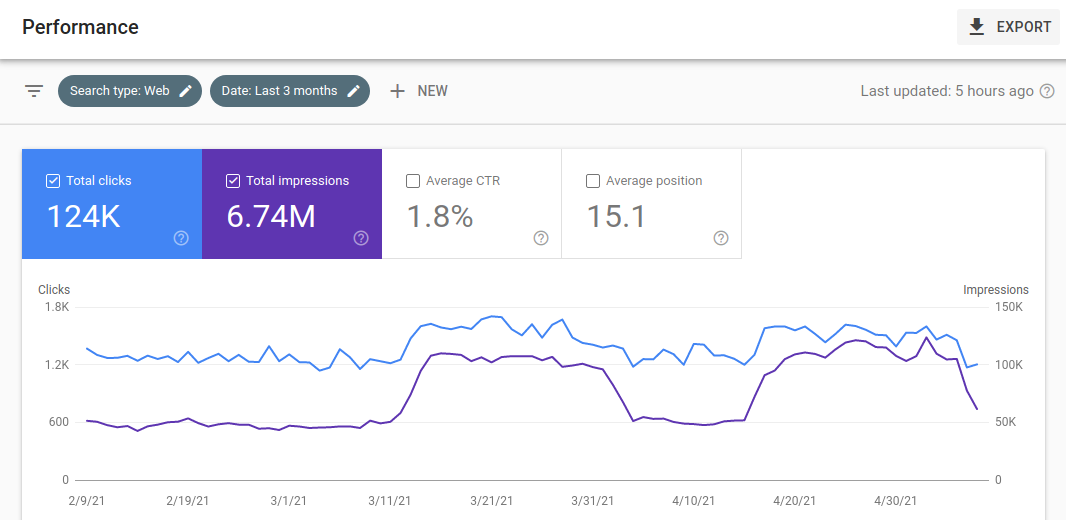
If you’re looking to improve your website’s visibility in Google search results, Google Search Console is one of the most important tools you can use – and it’s free.
In this guide, we’ll walk you through how to set up Google Search Console for your website, so you can start tracking performance, identifying issues, and optimizing for better search rankings.
🧰 What Is Google Search Console?
Google Search Console (GSC) is a free service offered by Google that helps you monitor, maintain, and troubleshoot your site’s presence in Google Search results. You can see which keywords are driving traffic, monitor indexing issues, submit sitemaps, and more.
✅ Why You Should Use Google Search Console
- Track performance: See how many impressions and clicks your site gets from Google search.
- Identify issues: Get alerts for crawl errors, mobile usability problems, and indexing issues.
- Optimize SEO: Find out what queries people use to find your site and which pages perform best.
- Submit content: Let Google know about new or updated pages faster by submitting sitemaps.
🚀 How to Set Up Google Search Console
1. Go to Google Search Console
Head to: https://search.google.com/search-console
Click the “Start now” button and sign in with your Google account.
2. Add a Property (Your Website)
You’ll be prompted to add your website as a “property.” You have two options:
- Domain property (recommended): Covers all URLs across subdomains and protocols (http, https).
- URL prefix property: Tracks only a specific URL and protocol (e.g., https://www.example.com).
If you’re unsure, choose Domain property for the most complete coverage.
3. Verify Ownership
Google needs to confirm that you own the website. Verification options include:
- DNS verification (recommended for Domain properties)
You’ll be given a TXT record to add to your domain’s DNS settings (via your domain registrar like GoDaddy or Namecheap). - HTML file upload
Download a file from GSC and upload it to the root of your website. - HTML meta tag
Paste a meta tag into the<head>of your homepage. - Google Analytics / Google Tag Manager
If already installed on your site, you may be able to verify ownership this way.
Once you’ve added the verification method, click “Verify” in GSC.
Related: How to Set Up Google Analytics 4 (GA4) for Your Website: A Step-by-Step Guide
🗺️ Submit Your Sitemap
After verification, submit your sitemap to help Google crawl your website more efficiently:
- In the left menu, click “Sitemaps.”
- Enter your sitemap URL (usually something like
https://www.yourdomain.com/sitemap.xml) - Click “Submit”
Tip: If you’re using a CMS like UltimateWB, the built-in Sitemap Generator tool can automatically generate and manage your sitemap – just what it is called :-)
📊 Start Exploring Your Data
Once your site is verified and a sitemap is submitted, it may take a few days for data to populate. When it does, you can start exploring:
- Performance: Queries, clicks, impressions, CTR, and average position.
- Coverage: Pages that are indexed or have errors.
- Experience: Core Web Vitals and mobile usability.
- Links: Internal and external backlinks.
- Manual Actions: Issues that may affect your site’s ranking.
🧠 Final Tips
- Check regularly: Make a habit of checking GSC weekly or after making big site changes.
- Fix issues quickly: If you see crawl errors or indexing issues, address them promptly.
- Use filters: Segment your data by country, device, page, or query to find actionable insights.
📝 Wrapping Up
Setting up Google Search Console is one of the smartest things you can do for your website’s SEO health. It gives you direct feedback from Google about how your site is performing – and what you can do to improve it.
If you haven’t already, set it up today and start getting the data you need to grow your visibility and traffic.
Don’t have a website yet? Learn more about UltimateWB! We also offer web design packages if you would like your website designed and built for you.
Got a techy/website question? Whether it’s about UltimateWB or another website builder, web hosting, or other aspects of websites, just send in your question in the “Ask David!” form. We will email you when the answer is posted on the UltimateWB “Ask David!” section.