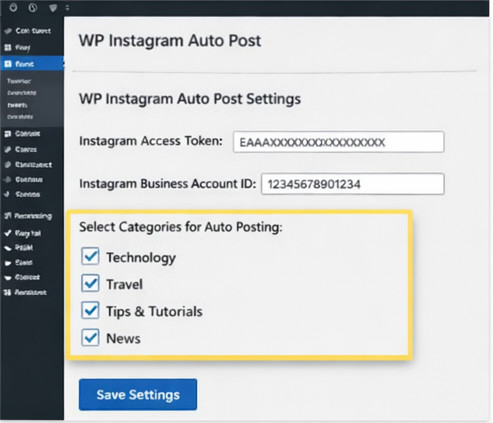
Sharing your blog posts on Instagram is a great way to increase reach and engagement – but manually posting every article can be time-consuming. With this custom WordPress plugin, you can automatically share posts to Instagram manually with a button, or automatically with daily posts. Plus, it works even if your posts don’t have images!
In this tutorial, we’ll guide you through setting up the plugin, configuring settings, and making sure every post has a valid image.
Step 1: Requirements
Before starting, ensure you have:
A WordPress site with admin access
An Instagram Business or Creator account
Your Instagram account linked to a Facebook Page
A Facebook Graph API access token (Graph API Explorer)
Instagram only allows posting images or videos via the API, so every post must have an image. This plugin ensures that by using featured images, the first image in post content, or generating an image automatically.
Step 2: Create the Plugin Folder
On your computer, create a folder named:
wp-instagram-auto-post
Inside that folder, create a file:
wp-instagram-auto-post.php
(Optional) Add a /fonts/ folder with a .ttf font, like arial.ttf, for dynamically generated images.
Step 3: Add the Plugin Code
Copy and paste the following code into wp-instagram-auto-post.php:
<?php
/*
Plugin Name: WP Instagram Auto Post
Description: Automatically post WordPress posts to Instagram manually or daily. Generates image if none exists. Configure access token, account ID, categories, and view error log.
Version: 1.4.1
Author: UltimateWB Devs
*/

if (!defined('ABSPATH')) exit;

class WP_Instagram_Auto_Post {

    private $access_token;
    private $instagram_account_id;
    private $selected_categories;
    private $instagram_errors = []; // For admin notices

    public function __construct() {
        // Load settings
        $this->access_token = get_option('wp_instagram_access_token', '');
        $this->instagram_account_id = get_option('wp_instagram_account_id', '');
        $this->selected_categories = get_option('wp_instagram_categories', []);

        // Admin, AJAX, Daily Posting
        add_action('admin_menu', [$this, 'register_admin_pages']);
        add_action('add_meta_boxes', [$this, 'add_instagram_button']);
        add_action('wp_ajax_post_to_instagram', [$this, 'post_to_instagram']);
        add_action('wp_instagram_daily_post', [$this, 'daily_random_post']);

        if (!wp_next_scheduled('wp_instagram_daily_post')) {
            wp_schedule_event(time(), 'daily', 'wp_instagram_daily_post');
        }
    }

    /** -------------------- COMBINED ADMIN PAGES -------------------- */
    public function register_admin_pages() {
        $this->add_admin_page();
        $this->add_error_log_page();
    }

    /** -------------------- SETTINGS PAGE -------------------- */
    public function add_admin_page() {
        add_menu_page(
            'Instagram Auto Post',
            'Instagram Auto Post',
            'manage_options',
            'wp-instagram-auto-post',
            [$this, 'admin_page_html']
        );
    }

    public function admin_page_html() {
        if (isset($_POST['wp_instagram_save'])) {
            update_option('wp_instagram_access_token', sanitize_text_field($_POST['access_token']));
            update_option('wp_instagram_account_id', sanitize_text_field($_POST['account_id']));
            $cats = isset($_POST['categories']) ? array_map('intval', $_POST['categories']) : [];
            update_option('wp_instagram_categories', $cats);
            echo '<div class="updated"><p>Settings saved!</p></div>';
            $this->access_token = get_option('wp_instagram_access_token');
            $this->instagram_account_id = get_option('wp_instagram_account_id');
            $this->selected_categories = get_option('wp_instagram_categories');
        }

        $categories = get_categories(['hide_empty' => false]);
        ?>
        <div class="wrap">
            <h1>WP Instagram Auto Post Settings</h1>
            <form method="post">
                <table class="form-table">
                    <tr>
                        <th>Instagram Access Token</th>
                        <td><input type="text" name="access_token" size="50" value="<?php echo esc_attr($this->access_token); ?>" required></td>
                    </tr>
                    <tr>
                        <th>Instagram Business Account ID</th>
                        <td><input type="text" name="account_id" size="50" value="<?php echo esc_attr($this->instagram_account_id); ?>" required></td>
                    </tr>
                    <tr>
                        <th>Select Categories for Auto Posting</th>
                        <td>
                            <?php foreach ($categories as $cat): ?>
                                <label>
                                    <input type="checkbox" name="categories[]" value="<?php echo $cat->term_id; ?>" <?php checked(in_array($cat->term_id, $this->selected_categories)); ?>>
                                    <?php echo esc_html($cat->name); ?>
                                </label><br>
                            <?php endforeach; ?>
                        </td>
                    </tr>
                </table>
                <p><input type="submit" name="wp_instagram_save" class="button button-primary" value="Save Settings"></p>
            </form>
        </div>
        <?php

        // Admin notices for manual post errors
        if (!empty($this->instagram_errors)) {
            foreach ($this->instagram_errors as $error) {
                echo '<div class="notice notice-error"><p>' . esc_html($error) . '</p></div>';
            }
            $this->instagram_errors = [];
        }
    }

    /** -------------------- POST EDIT BUTTON -------------------- */
    public function add_instagram_button() {
        add_meta_box('instagram_post_button', 'Instagram', [$this, 'instagram_button_html'], 'post', 'side', 'high');
    }

    public function instagram_button_html($post) {
        echo '<button id="instagram-post-btn" class="button button-primary" data-postid="'.esc_attr($post->ID).'">Post to Instagram</button>';
        ?>
        <script>
        jQuery(document).ready(function($){
            $('#instagram-post-btn').on('click', function(e){
                e.preventDefault();
                var post_id = $(this).data('postid');
                $.post(ajaxurl, {action:'post_to_instagram', post_id:post_id}, function(response){
                    alert(response.data);
                });
            });
        });
        </script>
        <?php
    }

    /** -------------------- AJAX POST TO INSTAGRAM -------------------- */
    public function post_to_instagram() {
        $post_id = intval($_POST['post_id']);
        $post = get_post($post_id);
        if (!$post) wp_send_json_error('Post not found.');

        $image = $this->get_post_image($post);
        if (!$image) {
            $error_msg = 'No image could be generated for this post.';
            $this->instagram_errors[] = $error_msg;
            $this->log_instagram_error($error_msg);
            wp_send_json_error($error_msg);
        }

        $caption = wp_strip_all_tags($post->post_title . "\n\n" . wp_trim_words($post->post_content, 20));
        $res = $this->instagram_post($image, $caption);

        if ($res) wp_send_json_success('Posted to Instagram successfully!');
        else wp_send_json_error('Failed to post to Instagram. Check the Error Log for details.');
    }

    /** -------------------- GET IMAGE -------------------- */
    private function get_post_image($post) {
        $image = get_the_post_thumbnail_url($post->ID, 'full');
        if ($image) return $image;

        if (preg_match('/<img.+?src=["\'](.+?)["\'].*?>/i', $post->post_content, $matches)) {
            return $matches[1];
        }

        return $this->generate_post_image($post);
    }

    /** -------------------- GENERATE IMAGE -------------------- */
    private function generate_post_image($post) {
        if (!function_exists('imagecreatetruecolor')) return false;

        $width = 1080; $height = 1080;
        $title = wp_strip_all_tags($post->post_title);

        $image = imagecreatetruecolor($width, $height);
        $bg_color = imagecolorallocate($image, 255, 255, 255);
        imagefilledrectangle($image, 0, 0, $width, $height, $bg_color);
        $text_color = imagecolorallocate($image, 0, 0, 0);
        $font_size = 30;

        $font_path = __DIR__ . '/fonts/arial.ttf';
        if (!file_exists($font_path)) $font_path = null;

        if ($font_path) {
            imagettftext($image, $font_size, 0, 50, 500, $text_color, $font_path, $title);
        } else {
            imagestring($image, 5, 50, 500, $title, $text_color);
        }

        $upload_dir = wp_upload_dir();
        $file_path = $upload_dir['path'] . '/post_image_' . $post->ID . '.jpg';
        imagejpeg($image, $file_path, 90);
        imagedestroy($image);

        return $upload_dir['url'] . '/post_image_' . $post->ID . '.jpg';
    }

    /** -------------------- ERROR LOG UTILITY -------------------- */
    private function log_instagram_error($message) {
        $errors = get_option('wp_instagram_error_log', []);
        $errors[] = ['date'=>date('Y-m-d H:i:s'), 'message'=>$message];
        update_option('wp_instagram_error_log', $errors);
    }

    /** -------------------- POST TO INSTAGRAM API -------------------- */
    private function instagram_post($image_url, $caption) {
        if (empty($this->access_token) || empty($this->instagram_account_id)) {
            $this->log_instagram_error('Access token or account ID is missing.');
            return false;
        }

        $endpoint = "https://graph.facebook.com/v17.0/{$this->instagram_account_id}/media";
        $data = ['image_url'=>$image_url, 'caption'=>$caption, 'access_token'=>$this->access_token];
        $response = wp_remote_post($endpoint, ['body'=>$data]);
        $body = json_decode(wp_remote_retrieve_body($response), true);

        if (!isset($body['id'])) {
            $this->log_instagram_error('Error creating media: ' . wp_json_encode($body));
            return false;
        }

        $publish_endpoint = "https://graph.facebook.com/v17.0/{$this->instagram_account_id}/media_publish";
        $publish_response = wp_remote_post($publish_endpoint, ['body'=>['creation_id'=>$body['id'],'access_token'=>$this->access_token]]);
        $publish_body = json_decode(wp_remote_retrieve_body($publish_response), true);

        if (!isset($publish_body['id'])) {
            $this->log_instagram_error('Error publishing media: ' . wp_json_encode($publish_body));
            return false;
        }

        return true;
    }

    /** -------------------- DAILY RANDOM POST -------------------- */
    public function daily_random_post() {
        $args = ['posts_per_page'=>1,'orderby'=>'rand','post_status'=>'publish'];
        if (!empty($this->selected_categories)) $args['category__in'] = $this->selected_categories;

        $posts = get_posts($args);
        if ($posts) {
            $post = $posts[0];
            $image = $this->get_post_image($post);
            if (!$image) {
                $this->log_instagram_error("Daily post failed: no image found for post ID {$post->ID}.");
                return;
            }
            $caption = wp_strip_all_tags($post->post_title . "\n\n" . wp_trim_words($post->post_content, 20));
            $this->instagram_post($image, $caption);
        }
    }

    /** -------------------- ERROR LOG ADMIN PAGE -------------------- */
    public function add_error_log_page() {
        add_submenu_page(
            'wp-instagram-auto-post',
            'Instagram Error Log',
            'Error Log',
            'manage_options',
            'wp-instagram-error-log',
            [$this, 'error_log_page_html']
        );
    }

    public function error_log_page_html() {
        $errors = get_option('wp_instagram_error_log', []);
        ?>
        <div class="wrap">
            <h1>Instagram Error Log</h1>
            <?php if ($errors): ?>
                <table class="widefat fixed">
                    <thead>
                        <tr><th>Date</th><th>Error Message</th></tr>
                    </thead>
                    <tbody>
                        <?php foreach ($errors as $e): ?>
                        <tr>
                            <td><?php echo esc_html($e['date']); ?></td>
                            <td><?php echo esc_html($e['message']); ?></td>
                        </tr>
                        <?php endforeach; ?>
                    </tbody>
                </table>
                <form method="post">
                    <p><input type="submit" name="clear_instagram_errors" class="button button-secondary" value="Clear Log"></p>
                </form>
            <?php else: ?>
                <p>No errors logged.</p>
            <?php endif; ?>
        </div>
        <?php
        if (isset($_POST['clear_instagram_errors'])) {
            update_option('wp_instagram_error_log', []);
            echo '<div class="updated"><p>Log cleared!</p></div>';
        }
    }

}

new WP_Instagram_Auto_Post();
Step 4: Upload and Activate the Plugin
Zip the wp-instagram-auto-post folder.
Go to WordPress Admin → Plugins → Add New → Upload Plugin, upload the zip, and activate.
Once activated:
A Post to Instagram button appears in the post editor.
The plugin automatically posts one random post per day from the selected categories.
Step 5: Configure the Plugin Settings
In WordPress admin, go to Instagram Auto Post in the left menu.
Enter your Instagram Access Token and Business Account ID.
Select the categories you want to allow for automatic daily posting.
Save settings.
Now the plugin knows which posts to use for daily posting and how to connect to your Instagram account.
Step 6: Image Handling
Instagram requires an image for every post. The plugin uses this fallback hierarchy:
Featured image – the primary image set in your post.
First image in post content – if no featured image is set.
Generated image – if no images exist, the plugin creates a 1080×1080 image with your post title.
This ensures every Instagram post always has a visual element, even for posts with no images.
Example of a dynamically generated image:
Step 7: Manual Posting
Open any post in the editor.
Click the Post to Instagram button in the sidebar.
A confirmation alert will appear when the post is successfully sent to Instagram.
Step 8: Automatic Daily Posting
The plugin automatically posts one random post per day from the categories you selected.
It follows the same image fallback rules.
No additional setup is required once your settings are saved.
Tip: Test with a single post first to ensure everything works as expected.
🛠️ How to Use the Instagram Error Log
To help you troubleshoot issues when the plugin tries to post to Instagram – whether manually or automatically – we added a built‑in Error Log in your WordPress dashboard.
🔎 What It Does
Whenever a post fails to publish to Instagram (for example due to an expired access token, missing permissions, or API errors), the plugin now logs the error message along with the date and time it happened. You don’t need to debug raw API responses yourself – now you can view them in a user‑friendly table in your admin area.
📋 How to Find the Error Log
In your WordPress admin, go to Instagram Auto Post in the left menu.
Click the new submenu item Error Log.
You’ll see a list of logged errors – each with a date and the full message from the Instagram API.
This helps you quickly understand why a post didn’t publish.
(Insert a screenshot of the Error Log page here.)
If you want to reset the log, just click Clear Log at the bottom.
🛠 Why This Is Useful
See exact API issues: Instead of a generic “failed to post” message, you’ll know if the token expired, permissions are missing, or image upload failed.
Covers manual and daily posts: Errors from both the Post to Instagram button and the daily auto‑post scheduler are logged here.
Helps with debugging: No need to edit code or check server logs – error details are right where you configure the plugin.
🔁 Example Use Cases
If the access token expires unexpectedly (a common issue with Meta/Instagram integrations), you’ll see a message explaining the token error so you can generate a new one.
If the Instagram API returns an unsupported image error, the log will show that response so you know to resize or adjust your image.
💡 Tip: After fixing the issue (e.g., updating your access token), it’s a good idea to clear the error log so future errors are easy to spot.
Optional Enhancements
Add logos or brand colors to dynamically generated images.
Extend daily posting to multiple posts per day.
Filter by custom taxonomies or tags instead of just categories.
Tips for Best Results
Include at least one image in posts when possible for best visual appeal.
Ensure your Instagram Business account is linked correctly to your Facebook Page.
Keep your access token and account ID secure; do not share publicly.
⚠️ WordPress Cron Dependence
WordPress’s internal cron doesn’t run on a strict schedule by itself – it only runs on page loads. If your site gets little traffic, daily posting might not run on schedule. Solution: Set up a real server cron to call wp-cron.php regularly. This is common practice with scheduled tasks.
⚠️ GD Image Generation Needs GD Installed
The plugin’s third fallback uses GD functions (imagecreatetruecolor() etc.). If GD isn’t installed/enabled on the server, it gracefully returns false — but that means no image and the post will fail.
You can check if GD is installed by creating a PHP file with:
<?php phpinfo(); ?>
and looking for GD in the output.
⚠️ Instagram API Requirements
You must ensure:
The Instagram account is a Business or Creator account.
It’s linked to a Facebook Page.
You have the correct access token with publish permissions.
This aligns with how other auto‑post plugins work.
If any of those are missing, posting will fail.
Disclaimer: This plugin uses the official Instagram Graph API. API restrictions or changes may affect functionality. Always test with a single post before enabling automated daily posting. Use at your own risk and ensure compliance with Instagram’s Terms of Service.
Got a techy/website question? Whether it’s about UltimateWB or another website builder, web hosting, or other aspects of websites, just send in your question in the “Ask David!” form. We will email you when the answer is posted on the UltimateWB “Ask David!” section.
About the UltimateWB Team
This article was written and reviewed by the UltimateWB Development Team. With over 20 years of hands-on experience in full-stack web development, database optimization, and secure server administration (WHM/cPanel), we engineer UltimateWB with clean, built-in apps so you never have to deal with the performance-draining software bloat, security risks, or compatibility issues of third-party plugins. We build software designed from day one for maximum developer autonomy and lightning-fast performance.