



Losing access to your website can be a stressful experience. Whether it’s due to accidental deletion, a server glitch, or malicious activity, the good news is that recovery is often possible. In this blog post, we’ll guide you through how to restore a website and share preventative tips to help you avoid future data loss.
Step 1: Diagnose the Cause of the Website Loss
Before you can restore your site, it’s important to understand what caused the issue. Ask yourself:
- Was the website accidentally deleted?
- Did the hosting server crash or have a technical issue?
- Has the site been hacked or compromised?
Identifying the root cause helps determine the most effective recovery strategy.
Step 2: Contact Your Hosting Provider for Immediate Help
If your website is hosted through a web hosting provider, contact their support team right away. Most reliable hosting services regularly create backups and may be able to restore your site quickly.
At UltimateWB, for example, all web hosting plans include cPanel with built-in backup and restore tools to make recovery easy.
Step 3: Restore from a Website Backup
If you’ve been maintaining your own backups (and we hope you have!), now’s the time to use them. You can typically restore your website by:
- Uploading the backup files via FTP or cPanel File Manager.
- Importing your database using phpMyAdmin or your host’s restore tool.
Most web hosting control panels offer a simple interface to manage this. Again, UltimateWB’s cPanel makes this process seamless for users.
Related: Custom (proprietary) web hosting control panels vs cPanel
Best web hosting control panel? cPanel
Step 4: Check Your Domain and DNS Settings
Sometimes a website appears “lost” due to a domain issue rather than an actual data loss. Make sure:
- Your domain is still active and registered.
- DNS settings point to the correct hosting server.
- There are no propagation delays or misconfigured nameservers.
Step 5: Use the Wayback Machine to Recover Archived Content
If you don’t have a backup and your host can’t help, try visiting Archive.org’s WayBack Machine. This tool stores snapshots of many websites over time.
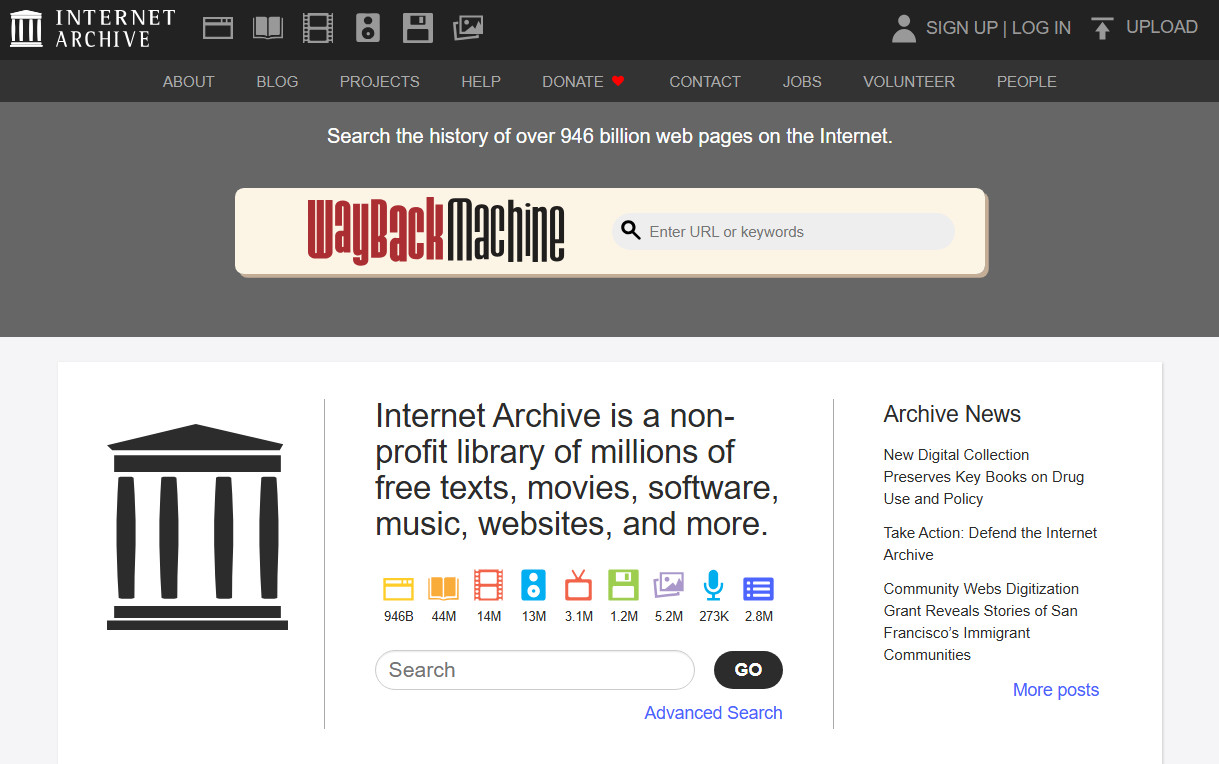
We’ve used this option many times for our web design package clients who lost their websites and all materials while using a different service.
While not ideal for a full restoration, it’s a great starting point for rebuilding.
Step 6: Recreate Your Website from Scratch (If Needed)
If there are no available backups and no archive data, you may need to rebuild the website manually. Gather any available content from:
- Old documents or email drafts
- Social media posts
- Design files, images, and logos
- Team members who may have local copies
Use a CMS or website builder like UltimateWB to speed up the rebuilding process.
Step 7: Strengthen Security to Avoid Future Loss
Once your site is restored, implement these preventative measures:
- Back up your website regularly, both locally and with off-site storage.
- Keep software, plugins, and themes up to date, especially if using WordPress.
- Use strong, unique passwords for all logins.
- Install security plugins or firewalls to monitor for suspicious activity.
- Enable two-factor authentication wherever possible.
Related: Transitioning from a Hacked WordPress Site to UltimateWB: A Seamless Rebuild
WordPress website hacked? How to fix it…!
Step 8: Get Help from Website Recovery Experts
If the recovery process feels overwhelming, don’t hesitate to reach out. Our experienced web developers specialize in website recovery and can help you retrieve your lost site, even when other options seem exhausted.
👉 Contact us directly to request help.
Bonus: Build a Backup Strategy That Works
To prevent future headaches, we recommend:
- Scheduling automatic daily or weekly backups.
- Storing backups in multiple locations (e.g., server + cloud + local).
- Testing your restore process regularly to ensure everything works as expected.
Final Thoughts
Losing a website can feel like a major setback – but it doesn’t have to be the end. With the right tools and approach, you can often restore your site quickly and safely. Better yet, by planning ahead with regular backups and strong security, you can avoid the problem altogether.
Need help restoring or securing your website?
We’re here to help – Get in touch with our web recovery team today!
Are you ready to design & build your own website? Learn more about UltimateWB! We also offer web design packages if you would like your website designed and built for you.
Got a techy/website question? Whether it’s about UltimateWB or another website builder, web hosting, or other aspects of websites, just send in your question in the “Ask David!” form. We will email you when the answer is posted on the UltimateWB “Ask David!” section.